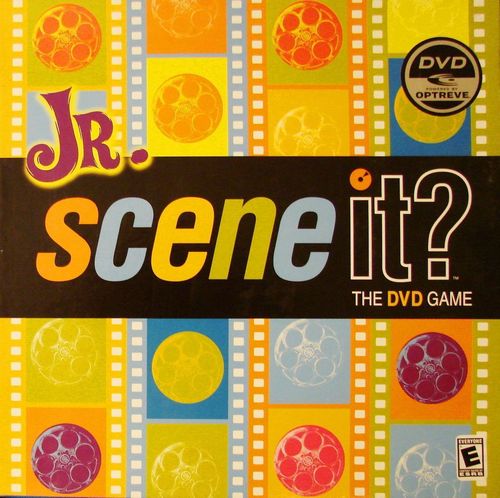
Scene It? Jr.
Scene It? Jr. Rulebook
Table of Contents
Table of Contents
Game Rules
Scene It? Jr. can be played with 2 to 4 players or teams, so divide up, grab the remote, and let 'er roll!
Ages: 8+ Players: 2 to 4 Players or Teams
Object
Travel around the game board and be the first to enter the winner's circle.
Contents
- 1 Game DVD
- 1 Flextime™ Game Board
- 1 Six-sided Numbered Die
- 1 Eight-sided Category Die
- 4 Game Pieces
- 4 Category Reference Cards
- 30 Buzz™ Cards
- 160 Trivia Cards
Requires a TV and DVD player (not included).
Please remove all components from package and compare them to the component list. If any items are missing, please call the number printed on the sheet.
Getting Started
You have two options for learning to play Scene It? Jr.:
-
Choose How to Play from the DVD's Main Menu and watch the on-screen demonstration.
-
Read the instructions below. Begin with SET UP for a complete description of the game, or skip to PLAY THE GAME for the essentials.
Set Up
-
Position the Flextime™ game board so that all players can see the TV or monitor connected to your DVD player. The board can be fully extended for longer games or folded into a circle for shorter play.
-
Choose a game piece for each player/team and place it on the start space.
-
Shuffle and place the Buzz™ Cards on the board, yellow side up. Place the two dice beside it, and distribute a Category Reference Card to each player. You may draw the Trivia Cards from their holding tray within the game box, or you can stack them in a Draw Pile beside the board – whichever you prefer.
-
Insert the Scene It? Jr. DVD into your DVD player. The DVD will show a quick intro and then display the Main Menu.
-
Select one person, referred to as the DVD master, to operate the remote control.
Remote control:
Use the ARROWS on your remote to navigate between Scene It? Jr. Menu items.
- Use the CENTER, ENTER or PLAY button to activate a menu selection.
- Use the SKIP or FAST FORWARD buttons to navigate through clips.
- Use the RETURN button (if available) to bypass repeats and automatically receive a new question.
-
Select Timer Setting from the Main Menu. You will use the on-screen timer when answering Trivia Card questions. The timer is pre-set at 30 seconds, but may be set at 10 or 20 seconds to make the game more challenging. Select the time limit you want; this will remain the default setting for that game unless you reset the timer by accessing the Main Menu once again.
-
Choose Play the Game from the Main Menu and the Game Menu will appear.
The Game Menu lists: start timer, all play, my play, all play to win, final cut, tie breakers.
Play the Game
-
All players/teams roll the numbered die, re-rolling any ties. The highest roller goes first and play proceeds clockwise around the table.
-
Each turn, a player/team rolls both dice and moves the number of spaces shown on the numbered die. Note: game pieces can share the same space on the board.
-
The category die tells you what kind of question you get. If you answer correctly, you take another turn. Reference Cards are provided to allow easy recognition of Scene It? Jr. challenges.
Quick Category Reference
This card is printed on each Category Reference Card:
- my play – Select my play on the DVD and answer the question that follows. (DVD Challenges)
- all play – Select all play on the DVD and be the first to answer the questions correctly. (DVD Challenges)
- movies – Select a trivia card and answer the question about the movie or star. (Trivia Card Challenges)
- television – Select a trivia card and answer the question about the show or actor. (Trivia Card Challenges)
- pop culture – Select a trivia card and answer the pop culture trivia question. (Trivia Card Challenges)
- the buzz™ – Select a buzz card and move the game piece as directed. (Buzz Cards and Player's Choice)
- player's choice – Choose a trivia card, or a DVD my play or all play question. (Buzz Cards and Player's Choice)
The Scene It? Jr. Challenges
Depending on the symbol rolled on the category die, players will have to complete different DVD or Trivia Card challenges:
DVD Challenges
My Play (red triangle symbol)
The DVD master selects My Play from the DVD Game Menu, and ONLY THE ROLLING PLAYER/TEAM MAY ATTEMPT TO ANSWER THE ON-SCREEN CHALLENGE.
Game Tip: If you play Scene It? Jr. many times, you may eventually start seeing the same clips over again. Don't worry! Each clip has multiple questions associated with it. So pay attention; you never know what you will be asked!
All Play (grey triangle symbol)
The DVD master selects All Play from the DVD Game Menu. ALL PLAYERS GET TO COMPETE. The first player/team to clearly shout out the correct answer to the on-screen challenge wins.
- If the roller wins, they roll both dice and take another turn.
- If the roller loses, the dice pass to the next player/team in order. The winner of the challenge can choose to force another player to draw a Buzz Card and follow its instructions, or to move their own game piece forward one space.
- If no one answers correctly, play proceeds to the next player in turn.
- If two players answer at the same time, select Tie Breaker from the Game Menu.
Game Tip: Clips can be skipped through by using the SKIP or FAST FORWARD buttons on the remote.
If you receive an All Play that you have seen in a previous game just hit the RETURN button on your remote and another All Play challenge will appear.
Trivia Card Challenges
When a player rolls a Trivia Card challenge, an opposing player draws a card from the top of the Trivia Card pile. After the appropriate question has been read, the DVD master selects Start Timer and the player must give the correct answer before the timer reaches zero. Replace the card at the bottom of the Draw Pile when finished.
- Movies (green triangle symbol): Answer a question about a movie or star.
- Television (orange triangle symbol): Answer a question about a show or actor.
- Pop Culture (yellow triangle symbol): Answer a question about pop culture.
Buzz Cards and Player's Choice
- Buzz Cards (blue triangle symbol): Read the Buzz Card aloud and immediately follow its instructions, then pass the dice to the next player/team in order.
- Player's Choice (grey triangle symbol with arrows): Rolling this allows players to choose any DVD challenge (My Play or All Play), a Trivia Card challenge (any category) or a Buzz card.
Double Feature Space
If you win any challenge while on a Double Feature space, move twice the number of spaces shown on the die on your next roll.
Winning the Game
1. All Play to Win
When you reach the end of the game path, you must stop on the space labeled Stop: All Play to Win, no matter what you may have rolled. The DVD master chooses All Play to Win from the Game Menu and ALL PLAYERS compete in a special All Play challenge.
If you win this challenge, you move directly to the Winner's Circle and WIN THE GAME!
If you lose, you move to the outer Final Cut™ ring (marked 3) and must wait for your next turn for another chance to win – this time by undertaking a Final Cut challenge. The dice pass to the next player in sequence, and the actual winner of the challenge has the option to force an opponent to draw a Buzz Card or to move their own game piece forward three spaces (unless they are already on a Final Cut ring).
2. Final Cut
Final Cut requires you to correctly answer several questions in a row to win the game. Since this is difficult to do, other players will likely start catching up, so be careful!
The DVD master chooses Final Cut from the Game Menu and you follow the on-screen instructions. The number of questions asked corresponds to the ring upon which your game piece stands. For example, if you are on circle 3, you will get three questions. If you answer all three correctly, you move to the Winner's Circle and WIN THE GAME! If you get any of them wrong, you move in one ring and have to wait for your next turn for another chance to win. Again, the on-screen instructions will walk you through Final Cut, so don't sweat it!
Game Tips: A player must successfully complete a challenge to win the game. A player who loses a challenge while on the Final Cut ring marked 1 does not advance inward. They stay on 1 and must await their next turn. Buzz cards cannot be played against players on a Final Cut ring.
Options
For Longer Games – To make the game more competitive (and longer), only roll the numbered die and advance your game piece after getting a question right (rather than moving at the start of each turn). Also, be sure the board is fully extended.
For Shorter Games – Fold the board into its smaller circle shape, and be sure to roll the numbered die and move before answering questions.
Party Play Scene It? Jr. – Scene It? Jr. DVD challenges are a great way to entertain a party. Simply insert the Scene It? Jr. DVD into your DVD player, start selecting My Play and All Play at random, and let the shouting begin!