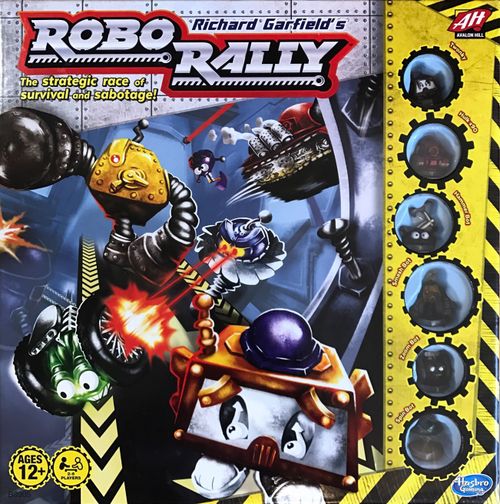
Robo Rally
Robo Rally Rulebook
Table of Contents
Table of Contents
Game Contents
6 double-sided gameboards • double-sided start board • 6 robot figures • 8 reboot tokens • 36 checkpoint tokens • plastic priority antenna • 6 checkpoints • 48 plastic energy cubes • 30-second sand timer • 6 robot player mats • 40 upgrade cards • six 20-card programming card decks • 6 special programming cards • 74 damage cards • vac tray • label sheet
2–6 players. Ages 12+.
How to Win
Play cards to program your robot's moves through the hazardous factory. Make your way to each of the checkpoints in your chosen course in numerical order. The first player to reach all of the checkpoints wins.
The First Time You Play
- Remove the shrink wrap from each set of cards. Discard the waste.
- Remove the six double-sided gameboards, double-sided start board, six player mats, six reboot tokens, and thirty-six checkpoint tokens from their parts sheets. Discard the waste.
- Apply the labels to the checkpoints.
Set Up
- Choose a racing course to play. You'll find a complete list of courses starting on page 16. "Dizzy Highway" is a great course for first-time players. Page 16 of this guide will tell you how to set up the gameboards, priority antenna, checkpoints, reboot tokens, and energy cubes for "Dizzy Highway."
- Each player chooses a robot and takes the matching figure, player mat, and programming deck for that robot. Shuffle your programming deck, and place it facedown on your player mat as shown below.
- There are six special programming cards that are not associated with a specific robot. Place them faceup near the board where all players can reach them.
- Separate the four types of damage cards (these are the SPAM, Worm, Virus, and Trojan Horse cards), and place them, in four separate piles, faceup near the board where all players can reach them.
- Shuffle the upgrade cards, and place the deck facedown where all players can reach it. From the top of the deck, take the same number of cards as you have players, and place the cards faceup next to the draw pile. For example, if you have three players, flip over three cards. If you have five players, flip over five cards. This will be the upgrade shop.
- Place the timer and checkpoint tokens within reach of all players.
- Place the energy cubes within reach of all players. This will be the energy bank.
- Each player takes five energy cubes. Place yours on your player mat as shown below.
- Each player places their robot on one of the black and white gears on the start board shown below. Players place their robots with the arrow on their base pointing toward the racing course. The youngest player places their robot first, and the choice moves to the left. At the start of the first round, players will take turns based on whose robot is closest to the priority antenna. You'll learn more about this on the next page under Determining Priority.
For a two player game, your game set up should look like the diagram in the guide. The setup diagram shows the following pieces in play: the 30-second sand timer, the priority antenna, each player's robot figure, their programming cards, the start board, each player's player mat, the gameboard, the reboot tokens, the checkpoint tokens, a checkpoint, the player's energy reserve, the special programming cards, the damage cards, the upgrade shop, and the energy bank.
How to Play
ROBO RALLY is played in rounds. Each round is made up of the following three phases: (1) the upgrade phase, (2) the programming phase, and (3) the activation phase.
Here's a quick summary of what a round will look like. You'll find a more detailed description of each phase and how to play a full round starting on the next page.
- The Upgrade Phase: Use energy cubes to purchase upgrades for your robot.
- The Programming Phase: Draw cards from your programming deck, and arrange them on your player mat to plot the moves you want your robot to make.
- The Activation Phase: Activate your robot, and carry out its programming. Board elements will also activate.
During the upgrade and activation phases, players must determine priority to see who goes first. In the programming phase, players will perform actions simultaneously.
Determining Priority
In ROBO RALLY, when a player has priority, it is that player's turn. Rather than taking turns based on where they are sitting, players take turns based on where their robot is sitting on the board.
At any given time, the player whose robot is closest to the priority antenna has priority. After that player takes their turn, the second closest player to the antenna has priority and takes their turn, and so on.
Here are two basic examples of how to determine priority.
Example 1. To determine who is closest to the priority antenna, start at the antenna and count the number of spaces to each robot. Count by row, then by column. Zoom Bot, in green, is closest to the antenna and therefore has priority.
Example 2. What if robots are tied for priority? In this example, Zoom Bot, in green, and Smash Bot, in yellow, are an equal number of spaces away from the antenna. In the case of such a tie, imagine an invisible line pointing straight out from the antenna's dish. Once this line reaches the tied robots, it moves clockwise, and the tied robots have priority according to the order in which the line reaches them. Zoom Bot has priority and goes first. Smash Bot goes next, and Hulk x90 goes last.
Playing a Round
1. The Upgrade Phase
At the start of each round, players may purchase upgrade cards for their robots using energy cubes which you'll have chances to collect throughout the game. Upgrades change the way your robot functions, providing your robot with advantages, and you may use upgrades at different times during the programming and activation phases.
There are two basic types of upgrades: permanent and temporary. Permanent upgrade cards are yellow, and temporary upgrade cards are red. Once you purchase a permanent upgrade, its effects will last for the remainder of the game. Temporary upgrades may be used only once and are discarded after you activate them. (See page 26 for a more detailed description of each type of upgrade available. Becoming familiar with these cards will help you to better use them.)
The Upgrade Shop
At the beginning of the upgrade phase, make sure the upgrade shop is refreshed AND full, in that it contains the same number of upgrade cards as there are players.
- If the upgrade shop is already full, that means no players bought upgrades during the last upgrade phase (unless it is the first round of the game). Take the cards in the upgrade shop, and remove them from play. Refresh the shop by drawing the same number of cards from the top of the deck as there are players and placing the cards faceup.
- If one or more cards are missing from the shop, draw cards from the top of the upgrade deck, and place them in the open slots until there is the same number of cards as players.
Purchasing Upgrades
At the start of the upgrade phase, determine which player has priority. (Remember, it's the player whose robot is closest to the priority antenna.) That player has first choice of the upgrades available in the upgrade shop and may buy only one. Continue to determine priority to see who gets to purchase upgrades second, third, and so on.
To purchase an upgrade, look at the number in the top left-hand corner of the card. This is the number of energy cubes you must pay to purchase the card. Take that many energy cubes from your player mat, and place them in the pile near the board.
If you've purchased a permanent upgrade, place it on one of the upgrade slots on your player mat.
If you've purchased a temporary upgrade, place it in front of your player mat. You may use it at any time during the programming or activation phases.
Note: Your robot can have a maximum of three permanent upgrades and three temporary upgrades. If there is an upgrade in the upgrade shop that you'd like to buy when you have the maximum number of upgrades, you may discard an upgrade of the same type that you own and then purchase the desired upgrade.
Once all players are finished purchasing upgrades, proceed to the programming phase.
2. The Programming Phase
During the programming phase, you'll plan your robot's actions for the round. You'll do this by placing programming cards in each of the five registers on your player mat. Programming cards tell your robot to do things like move, turn, or collect energy. You'll find a complete description of the eight types of programming cards on page 24.
Programming Your Robots
To program your robots, all players perform the following actions at the same time.
-
Draw nine cards from your programming deck. If there are fewer than nine to draw from, take what is available. Then shuffle your programming discard pile to replenish your deck, and draw until you have nine cards.
-
The nine cards in your hand represent the moves available to you for this round. Inspect the gameboard to see which cards will help you safely make your way to the next checkpoint. Should you move 3? Should you recharge to collect energy? Do you need to turn left or right? Be aware of board elements or other robots in your way as these will affect your robot during the activation phase.
-
After you have an idea of what you need your robot to do, choose five cards to play, and place one facedown on each of the five registers on your player mat. During the activation phase, your robot will perform the action on the card you placed in register one first. Then it will perform the action on the card you placed in register two, and so on.
Note that during the activation phase, players take turns activating their robots. This means that all players will activate register one, based on priority. After register one programming is complete and any board elements have been activated, players will proceed to register two, and so on. You'll learn more about this on the next page in step 3, The Activation Phase.
Once you have placed your final programming card, you cannot change your cards.
-
Place any programming cards still in your hand in the discard pile on your player mat.
Here's an Example of What Programming Your Robots Will Look Like
Amanda has these programming cards in her hand this round: Move 3, Move 1, Move 1, Move 2, Power Up, Left Turn, Right Turn, Right Turn, and U-Turn.
She studies the board to visualize how she wants to plot out her movements. She decides she wants her robot to move ahead 3, turn right to avoid the yellow wall, move ahead 2, turn left to redirect her robot toward the checkpoint, and finish its turn by recharging to collect an energy cube.
- She starts here and wants to move ahead three in the direction her robot is facing.
- Here she wants to turn right to avoid the wall.
- Then, she wants to move ahead two.
- Here, she wants to turn left so she is facing the checkpoint.
- She wants to use her last register to power up and earn an energy cube.
So she places programming cards in her registers as shown: Move 3, Right Turn, Move 2, Left Turn, Power Up. Note that your cards will be facedown during this phase.
Don't Take Too Long Programming!
ROBO RALLY is a race! Program your robots as quickly as you can! After the first player has finished placing their programming cards, that player must flip the timer. Players who are still placing programming cards have until the timer runs out to finish programming without consequence.
What if time runs out?!
Chaos! A player who is not finished programming must immediately discard the programming cards in their hand. They must then take cards from the top of their deck, shuffling their discards if necessary, and randomly place them on the unfinished registers.
Once all players have finished programming, proceed to the activation phase.
3. The Activation Phase
During the activation phase, the programming cards you placed in your registers during the programming phase activate. Programming cards activate one register at a time, and players take turns during the register based on priority. (See Determining Priority on page 4.) For every register, after all players have activated their programming, board elements and robot lasers activate before the next register begins.
Activating Your Robots
-
All players flip over the cards in register one on their player mats, revealing their programming choice.
-
The player with priority (that is, the player who is closest to the priority antenna) carries out the action on the programming card they placed in their first register. For example, if they played a Move 3 in the first register, they move forward three spaces. Don't worry about which space your robot ended its turn on just yet.
-
The next player with priority (that is, the player who is second closest to the antenna) carries out the action in their first register and so on until all players have activated the programming in their first register.
Now board elements activate, and robot lasers fire. Board elements trigger in the order shown on the next page and affect all robots on them at the same time. (See the next page for activation order and page 12 for a more detailed description of board elements and robot interactions.)
Activation Order for Board Elements and Robot Lasers
- Blue conveyor belts move any robot resting on them two spaces in the direction of the arrows.
- Green conveyor belts move any robot resting on them one space in the direction of the arrows.
- Push panels push any robot resting on them into the next space in the direction the push panel faces. The panels activate only in the register that corresponds to the number on them.
- Gears rotate robots resting on them 90 degrees in the direction of the arrows.
- Board Lasers fire, hitting any robots in their line of sight. Board lasers cannot fire through walls, the priority antenna, or hit more than one robot, and they shoot from the red and white pointer. (Take a SPAM damage card for each laser that hits you. See page 15 for Damage and Reboots.)
- Robot lasers fire in the direction a robot is facing. Their range has no limit. Any robot in the line of sight is shot. Robot lasers cannot fire through walls or shoot more than one robot. (Remember to take a SPAM damage card for each laser that hits you. See page 15 for Damage and Reboots.)
- When you end a register on an energy space, if there is an energy cube there, take it. If you end the fifth register on an energy space, take an energy cube from the energy bank.
- You must reach checkpoints in numerical order. In order to reach a checkpoint, you must be on it at the end of a register, and you may enter a checkpoint from any side. After you reach a checkpoint, take a checkpoint token, and place it on your player mat to track your progress in the race.
Some Notes on Board Elements and Activation
- Board elements only activate if your robot ends the register on them. For example, if you move through a laser's path on any given register but do not end your move on the laser, you will not be hit.
- You can push fellow robots, and sometimes robots will bump into each other. For more on pushing robots, see page 14.
- There are other types of board spaces to be aware of. See page 12 for more information on racing through the factory.
Repeat "Activating your robots" steps 1–3 for the remaining registers. Remember, after all players have activated their programming cards for a register, board elements activate, and robot lasers fire.
After the fifth register is complete, players take the programming cards in their registers and place them in their discard piles. Then play returns to the upgrade phase.
Don't forget! You can use permanent or temporary upgrades during the programming and activation phases. See each upgrade card for specific details regarding that upgrade.
Here's an Example of What Activating Your Robots Will Look Like
Take a look at how Amanda, Luis, and Chris have programmed their robots for the round.
Amanda's robot has priority because it is closest to the priority antenna. She gets to go first. She programmed a Move 3 card in her first register, so she moves her robot forward three spaces.
Luis's robot is the second closest to the priority antenna, so now it is his turn. He programmed a Move 1 card in his first register, so he moves his robot forward one space.
Chris's robot is farthest away from the antenna and goes last. He programmed a Turn Left card in his first register, so he turns 90 degrees to the left.
Now that all players have activated their programming for the first register, board elements activate, and robot lasers shoot. Here's a reminder of the activation order for board elements and robot lasers listed on page 8. In this example, only some of the elements activate.
- Blue conveyor belts activate as shown below.
- Green conveyor belts have no effect on robots here.
- Push panels have no effect on robots here.
- Gears have no effect on robots here.
- Board lasers activate as shown below.
- Robot lasers have no effect on robots here because no robot is facing another.
- Energy spaces have no effect on robots here.
- Checkpoints have no effect on robots here.
Amanda's robot is on an empty space, so nothing happens.
Luis's robot ended its turn on a laser, so it is shot, and he takes one SPAM damage card and places it in his discard pile. (See page 15 for Damage and Reboots.)
Chris's robot ended its turn on a double arrow conveyor belt, so his robot moves two spaces in the direction of the arrow. His robot does not turn.
Since no robot is facing another, no robot lasers fire.
Register one has now ended, and players proceed to register two.
And that's how you play a round!
Summary of a Round
1. The Upgrade Phase
Purchase upgrades based on priority.
2. The Programming Phase
All players program their robots simultaneously.
3. The Activation Phase
- Players activate register one programming based on priority. Board elements activate, and lasers fire.
- Players activate register two programming based on priority. Board elements activate, and lasers fire.
- Players activate register three programming based on priority. Board elements activate, and lasers fire.
- Players activate register four programming based on priority. Board elements activate, and lasers fire.
- Players activate register five programming based on priority. Board elements activate, and lasers fire.
The End of the Game
The game ends as soon as one robot ends a register on the final checkpoint, according to your chosen course. That player wins!
More on Racing Through the Factory
Here's a more detailed look at the board elements and robot interactions that will affect your robots as they race through the factory.
Board Elements
Remember, board elements activate at the end of each register. An element affects a robot only when that robot sits on it at the end of a register. As soon as the robot moves off a board element, whether as a result of that board element, the effects of upgrade cards, or robot interactions, the board element no longer affects the robot.
Conveyor Belts
Conveyor belts move your robot in the direction of the arrows. Double-arrowed conveyor belts move robots two spaces and activate before single-arrowed conveyor belts, which move robots one space. Once a robot has moved off a belt, the belt no longer affects that robot. See the examples below.
- Once Smash Bot has moved off the belt, the conveyor belt no longer affects it, so it moves one space instead of two.
- If a conveyor belt would move a robot into a non-conveyor belt space where another robot sits, the robot in motion must stop on the last space of the conveyor belt. It does not push the robot in its way.
- Both robots would end their move on the same conveyor belt space. In this rare instance, both robots stay where they are.
Rotating Conveyor Belts
Some conveyor belts have a curved arrow indicating a rotating section of the belt.
Robots rotate 90 degrees in the direction of the curved arrow as they move onto the curved section of the belt.
If a robot moves onto the curved section of a conveyor belt by means other than the conveyor belt itself, the robot does not turn 90 degrees.
If a robot moves onto the curved section of a conveyor belt by means of the conveyor belt, but it moves from a straight arrowed space instead of a curved arrow space, it will not turn 90 degrees.
Push Panels
Push panels push any robots resting on them into the next space in the direction the push panel faces. They activate only in the register that corresponds to the number on them. For example, if you end register two on a push panel labeled "2, 4" you will be pushed. If you end register three on the same push panel, you won't be pushed.
Gears
Gears rotate robots resting on them 90 degrees in the direction of the arrows. Red gears rotate left, and green gears rotate right.
Board Lasers
Board lasers fire at robots who end a register in their path, starting at the red and white pointer. Lasers cannot fire through walls, the priority antenna, or hit more than one robot. If your robot is shot by a board laser, you must take damage in the form of one SPAM damage card for each laser on that space and place it in your discard pile. (See Damage and Reboots on page 15.)
Pits
If you land on a pit, you immediately fall in and must reboot your robot. (See Damage and Reboots on page 15.)
Energy Spaces
At the start of the game, you will have placed energy cubes on these spaces as indicated by your chosen course. End your move on them to grab them! Once an energy cube has been picked up, that energy space remains empty of energy cubes for the remainder of the game. However, any robot that ends a fifth register on an empty energy space may take an energy cube from the energy bank even if that space was empty at the start of the game.
Checkpoints
Get here at fast as you can! Your goal is to land on each of the checkpoints in your chosen course in numerical order. If you're the first to do so, you win! In order to complete a checkpoint, you must be on it at the end of a register, and you may enter a checkpoint from any side. Sometimes you'll need to reach only one, and sometimes you'll need to reach six! When you complete a checkpoint, take a checkpoint token.
Walls
Robots cannot move through walls, and robot and board lasers cannot shoot through walls.
The Priority Antenna
The priority antenna helps determine whose turn it is. As a board element, it acts as a wall. Robots cannot move through, push, shoot through, or occupy the same space as the priority antenna.
Robot Interactions
Robot Lasers
Robot lasers fire at robots they are facing, as long as the laser's line of sight is not blocked by a wall, the priority antenna, or another robot. If your robot is shot by a robot laser, you must take damage in the form of one SPAM damage card for each hit and place it in your discard pile. (See Damage and Reboots on page 15.)
Pushing Other Robots
If a robot enters a space occupied by another robot, the robot in motion will push the other robot in the direction the pushing robot is moving until it ends its move. Robots do not change the direction they are facing when they are pushed. Robots can be pushed almost anywhere on the board, including into a pit. They can even be pushed off the side of the board! (See Damage and Reboots on page 15.) Robots cannot be pushed through walls. If a robot pushes another robot into a wall, both robots immediately end their movement.
Remember, if a conveyor belt would move a robot into a non-conveyor-belt space where another robot sits, the robot in motion must stop on the last space of the conveyor belt. It does not push the robot in its way.
Examples:
- As Smash Bot moves two spaces, he pushes Hulk x90 two spaces.
- In this example, Smash Bot pushes Hulk x90 into a pit, so Hulk x90 must reboot.
- Here Hulk x90, Hammer Bot, and Smash Bot are sitting in a row. Smash Bot moves one space and pushes the other two robots one space.
- Here, Smash Bot would push Hulk x90 three spaces, but when Hulk x90 hits a wall, both robots must stop even though Smash Bot has moves left.
Falling off the Board
If you move off or are pushed off of the board, you must reboot your robot immediately, just as you would if you fell into a pit. (See Damage and Reboots on page 15.)
Damage and Reboots
Robots are not impervious to damage, and any time they fall into a pit, are shot, or are knocked off the board, that player must take damage in the form of damage cards, which are played like programming cards.
When you receive a damage card, place it in your discard pile. When you shuffle your programming deck, the damage card will be in it, diluting your hand.
When you play a damage card in one of your registers, you must take the following steps:
- Carry out any instructions on the card.
- Immediately discard the damage card by returning it to the appropriate damage card draw pile. Now it is out of your deck. This is the advantage of programming a damage card.
- Take a programming card from the top of your deck, and play it in your current register. It will be a random card, so it might really mess up your plans! And that is the disadvantage of programming a damage card!
Note that if a damage card draw pile ever runs out, any player who would have drawn that type of card must choose a damage card of another type.
There are four types of damage cards, and some are scarier than others. Here's a more detailed description of each type.
SPAM
This is the simplest form of damage. Robots must take a SPAM damage card when they are shot by a board or robot laser.
Trojan Horse
When you program a Trojan horse damage card, you must immediately take two SPAM damage cards.
Worm
When you program a worm damage card, you must immediately reboot your robot.
Virus
When you program a virus damage card, any robot on the board within a six-space radius of you must immediately take a virus card from the draw pile.
Rebooting
When you fall off the board or into a pit, or when you activate a worm card, you must reboot your robot. When you reboot your robot, you must immediately take the following steps:
- Take two SPAM damage cards, and place them in your discard pile.
- Regardless of the current register, your programming is canceled for the round, and you may not complete remaining registers. Immediately discard any programming cards (including damage cards) in your remaining registers, as well as those in your hand. You must wait until the next round to program your robot.
- Place your robot on the reboot token that is on the same board where your robot was when it rebooted. You may turn your robot to face any direction. If you rebooted from the start board, place your robot on the space where you started the game.
Note: If multiple robots reboot on the same board in the same round or if a robot sits on the reboot token when other robots are rebooting, robots will leave the reboot space in the order they rebooted, with the next robot pushing the robot before it in the direction indicated by the arrow on the reboot token.
Also note: You can be shot or pushed by an active robot while on a reboot token, but you cannot shoot robots. You also may not use upgrades.
Racing Courses
On the following pages, you'll find a list of nineteen racing courses. The course descriptions will tell you which boards to use (each board is labeled with a number and a letter) and how to set up board elements. The courses are listed according to the following five difficulty levels.
Starter Course: Dizzy Highway — If you're playing for the first time, start here!
Beginner — Comfortable with the basic ROBO RALLY rules? Try these courses, where you'll need to interact with the board elements more than you did in Dizzy Highway.
Intermediate — Feel like you can take on any board element any time? Well, you can't escape them in the intermediate courses. You'll get stuck. You'll get shot. You'll chase moving checkpoints.
Advanced — These are for players looking for a strategic challenge. Cramped spaces mean near-constant interaction with board elements and rival robots.
Robots. Must. Die. — We don't know who designed these. They're just mean.
Each racing course description will also tell you the following information:
Game Length: This is the typical amount of time it'll take players who are familiar with the ROBO RALLY rules to get through the course. A short game may take about thirty minutes; a medium game may take about one hour; and a long game may take an hour and a half or more. The actual game time will depend on the number of players.
Special Rules: Some racing courses include rules you'll need to follow in addition to the core ROBO RALLY rules.
Starter Course: Dizzy Highway
If it's your first time playing, start here!
- Game Length: Short
- Boards: Start A, 5B
- Special Rules: None
To set up the course, do the following:
- Set up the factory floor by placing the start board next to gameboard 5B as shown.
- Place the checkpoints, energy cubes, reboot token, and priority antenna on the boards as shown.
Beginner Courses
Risky Crossing
- Game Length: Short
- Boards: Start A, 5A
- Special Rules: None
High Octane
- Game Length: Medium
- Boards: Start A, 4B
- Special Rules: None
Sprint Cramp
- Game Length: Short
- Boards: Start B, 5A
- Special Rules: None
Corridor Blitz
- Game Length: Short
- Boards: Start A, 2B
- Special Rules: None
Fractionation
- Game Length: Medium
- Boards: Start A, 6A
- Special Rules: None
Intermediate Courses
Burnout
- Game Length: Medium
- Boards: Start B, 2B
- Special Rules: In this course, you'll place the reboot token on the start board. Any robots that reboot will reboot onto that reboot token.
Lost Bearings
- Game Length: Medium
- Boards: Start A, 1A
- Special Rules: None
Passing Lane
- Game Length: Medium
- Boards: Start B, 4B, 5B
- Special Rules: None
Twister
- Game Length: Medium
- Boards: Start A, 6B
- Special Rules: In this course, you'll place checkpoints on conveyor belts. During the activation phase, move the checkpoints as you would a robot. Robots sitting on the checkpoint when it moves will also move.
Advanced Courses
Dodge This
- Game Length: Medium
- Boards: Start A, 4A
- Special Rules: None
Undertow
- Game Length: Long
- Boards: Start B, 1A, 3A, 4A
- Special Rules: None
Chop Shop Challenge
- Game Length: Long
- Boards: Start B, 3A, 2A
- Special Rules: None
Heavy Merge Area
- Game Length: Long
- Boards: Start A, 1B
- Special Rules: In this course, you'll place the reboot token on the start board. Any robots that reboot will reboot onto that reboot token.
Death Trap
- Game Length: Long
- Boards: Start A, 2A
- Special Rules: In this course, you'll place the reboot token on the start board. Any robots that reboot will reboot onto that reboot token.
Robots. Must. Die. Courses
Pilgrimage
- Game Length: Long
- Boards: Start A, 1B, 4B, 5B
- Special Rules: In this course, you'll place checkpoints on conveyor belts. During the activation phase, move the checkpoints as you would a robot. Robots sitting on the checkpoint when it moves will also move. If a checkpoint reaches a pit, it falls in. Immediately reset the checkpoint to its original position. Any robot that was on the checkpoint when it fell into the pit immediately reboots and may not count that checkpoint as complete.
Extra Crispy
- Game Length: Short
- Boards: Start A, 4A
- Special Rules: In this course, you'll place the reboot token on the start board. Any robots that reboot will reboot onto that reboot token.
Gear Stripper
- Game Length: Long
- Boards: Start A, 1B, 3B
- Special Rules: In this course, you'll place checkpoints on conveyor belts. During the activation phase, move the checkpoints as you would a robot. Robots sitting on the checkpoint when it moves will also move. If a checkpoint reaches a pit, it falls in. Immediately reset the checkpoint to its original position. Any robot that was on the checkpoint when it fell into the pit immediately reboots and may not count that checkpoint as complete.
Burn Run
- Game Length: Long
- Boards: Start B, 1A, 4B, 5A, 6A
- Special Rules: None
Card Index
Here's a more detailed look at the different types of cards in ROBO RALLY.
Programming Cards
Move 1, Move 2, Move 3 — Move your robot in the direction it is facing the number of spaces indicated.
Turn Right (card art: Right Turn) — Turn your robot 90 degrees to the right. The robot remains in its current space.
Turn Left (card art: Left Turn) — Turn your robot 90 degrees to the left. The robot remains in its current space.
U-Turn — Turn your robot 180 degrees so it faces the opposite direction. The robot remains in its current space.
Back Up (card art: Move Back) — Move your robot one space back. The robot does not change the direction it is facing.
Power Up — Take one energy cube, and place it on your player mat.
Again — Repeat the programming in your previous register. If your previous register was a damage card, draw a card from the top of your deck, and play that card this register. If you used an upgrade in your previous register that allowed you to play multiple programming cards, re-execute the second card. This card cannot be played in the first register.
Special Programming Cards
You may obtain these special programming cards by installing certain temporary upgrades. When you first receive a special programming card, place it in your discard pile. The card will cycle through your programming deck, and you may play them just as you would any other programming card, by placing them in one of your registers during the programming phase.
Energy Routine — Take one energy cube, and place it on your player mat. (Card text: "Take 1 energy cube.")
Sandbox Routine — Choose one of the following actions to perform this register: Move 1, 2, or 3; Back Up; Turn Left; Turn Right; U-Turn.
Weasel Routine — Choose one of the following actions to perform this register: Turn Left; Turn Right; U-Turn.
Speed Routine — Move your robot 3 spaces in the direction it is facing.
SPAM Folder — Permanently discard one SPAM damage card from your discard pile to the SPAM damage card draw pile.
Repeat Routine — Repeat the programming in your previous register. If your previous register was a damage card, draw a card from the top of your deck, and play that card this register. If you used an upgrade in your previous register that allowed you to play multiple programming cards, re-execute the second card.
Upgrade Cards
There are two types of upgrade cards: permanent and temporary. Upgrade cards tell you the cost and effect of the upgrade. (The cost is the number in the top left-hand corner of the card; the effect is printed in the text box.) See below for a more detailed description of each.
Permanent Upgrades
Once you've purchased a permanent upgrade, place it on your player mat. In the case of most upgrades, the card's attributes will apply to your robot for the remainder of the game.
| Card | Cost | Effect |
|---|---|---|
| Admin Privilege | 3 | Once per round, you may give your robot priority for one register. |
| Corruption Wave | 4 | You may put SPAM damage cards you deal on top of opponents' decks. |
| Blue Screen of Death | 4 | When you shoot or push an adjacent robot, you may give that player one worm damage card instead of one SPAM damage card. |
| Crab Legs | 5 | When executing a Move 1 card, you may move one space forward then one space right or left, without rotating and regardless of the direction you are facing. Then move forward one additional space in the direction you are facing. |
| Brakes | 3 | You may treat your Move 1's as Move 0's. |
| Deflector Shield | 2 | At the beginning of a register, you may spend one energy to negate any robot lasers that would hit you that register. |
| Cache Memory | 4 |
Rogue Code: Some upgrade cards have special rules that override the general rules. In the case of a conflict, follow the rules for that card.
Temporary Upgrades
Once you've purchased a temporary upgrade, you may keep it in your hand and use it at any time on your turn. After a temporary upgrade has gone into effect, place it out of play.
| Card | Cost | Effect |
|---|---|---|
| Boink | 1 | Move to an adjacent space. Do not change direction. |
| Hack | 1 | Execute the programming in your current register again. This action does not replace any existing programming. |
| Energy Routine | 3 | Add the Energy Routine programming card to your discard pile. It is now permanently part of your deck. The Energy Routine programming card acts as an extra Power Up card in your programming deck. |
| Manual Sort | 1 | You may give your robot priority for this register. This card overrides Admin Privilege. |
| Memory Swap | 1 | Draw three cards. Then choose three from your hand to put on top of your deck. |
| Repeat Routine | 3 | Add the Repeat Routine programming card to your discard pile. It is now permanently part of your deck. The Repeat Routine programming card acts as an extra Again card in your programming deck. |
| Reboot |
A Lighter Game
Beginners, younger players, or players who would like a lighter game may choose to play without the upgrade system. Just eliminate the upgrade phase, including the upgrade cards and energy cubes. You may also choose to remove the timer from the programming phase.
A More Advanced Game
After you've become a ROBO RALLY pro, try this change to the core rules. At the end of a round, instead of discarding the remainder of your hand, keep the programming cards you didn't use that round, and draw enough cards to have 9 for the next round. This will force players to program more damage cards, rather than discarding them at the end of a round.