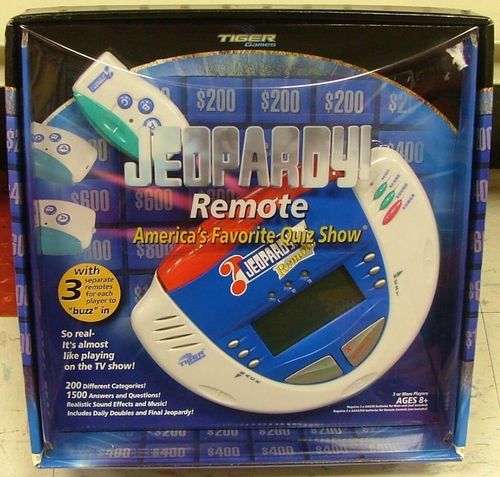
Jeopardy! Remote
Jeopardy! Remote Rulebook
Table of Contents
Table of Contents
- Important
- A Look at the Main Console and Remotes
- Main Console Game Buttons
- Remote Units Buttons
- Object of the Game
- Introduction
- Set Up
- How to Play
- Round 2 - Double Jeopardy!
- Daily Double
- Round 3 - Final Jeopardy!
- Final Score
- Automatic Shut Off
- Install Batteries
- Important: Battery Information
- Maintenance
- Caution/Defect or Damage
Important
- If the main console or remotes malfunction or "lock up," use a ballpoint pen to press the RESET button. If the game still doesn't function, remove and replace the batteries with fresh ones.
- Please keep these instructions for future reference.
A Look at the Main Console and Remotes
(Diagram labels: Contestants' Lights, Screen Controls, Reset, Score, Sound, Power, Correct, Incorrect; on each Remote, A B C Buttons and Reset.)
Main Console Game Buttons
- POWER - Press to turn the game on and off. To end a game in progress and start a new game, press POWER to turn the game off. Then press again to start a new game.
- SCORE - Press to display the players' scores during the game. Press again to return to the game.
- SOUND - Press to increase the volume. Press again to turn sound off. Press a third time to return to normal.
- CORRECT - Press when a contestant's response is correct.
- INCORRECT - Press when a contestant's response is incorrect.
- SCREEN CONTROLS - Press one of the six buttons as directed by the Main Console screen.
- RESET - Press to reset the game if it malfunctions or "locks up."
Remote Units Buttons
Regular Jeopardy! and Double Jeopardy!
Press any of the three buttons to buzz in.
Final Jeopardy! Only
- Press "A" to choose response "A."
- Press "B" to choose response "B."
- Press "C" to choose response "C."
RESET - Press to reset the remote if it malfunctions or "locks up."
Object of the Game
Win the most money by giving the correct response to clues.
Introduction
Congratulations! You're the new Host of Jeopardy! Everything about the game will be explained from your vantage point.
As the Host, you will sit at the Main Console. Contestants will use their Remotes to buzz in with their response. There are two ways to play:
- Normal Jeopardy! plays like the TV version. As usual, the category and dollar value are chosen. Then, the clue is read. Contestants who think they know the correct response buzz in with their Remotes. The contestant who buzzes in first must then give a response. If the response is correct, the contestant continues. If the response is incorrect, then another contestant can try to buzz in first.
- Multiple-Choice Jeopardy! plays the same as above except that three possible responses are read after a clue is given.
Both versions of the game have three rounds of play:
- Round 1 - Jeopardy! has one Daily Double.
- Round 2 - Double Jeopardy! has higher money values and two Daily Doubles.
- Round 3 - Final Jeopardy! has secret wagering.
Note: Daily Doubles will be discussed later in the instructions.
Set Up
Remove the three Remotes from Main Console as shown. Each contestant takes a Remote and sits nearby. The Remotes use wireless technology to communicate with the Main Console. You (the Host) sit at the Main Console.
Remove Remotes to begin play. Insert Remotes back into the Console when play is finished.
How to Play
Getting Started
- Press the POWER button to turn on the Main Console. You will hear the theme music.
- Look at the Main Console screen. Press the < ABC button to play multiple-choice Jeopardy! (or) Press the NORMAL > button to play normal Jeopardy!
- When the screen shown at right appears, tell the contestants to "buzz in" one at a time. Contestants buzz in by pressing any button on their Remotes.
- When all contestants have buzzed in, press the OK > button.
The buzz-in screen reads "PRESS REMOTES TO BUZZ IN" with an OK > prompt. With two players, the screen reads "PRESS REMOTES TO BUZZ IN 2 PLAYERS" with an OK > prompt.
Round 1 Jeopardy!
If you are satisfied with the screen contrast, press the BEGIN > button.
If you want to adjust the screen contrast, press the < ADJ. button.
Press the +> button to darken the screen. Press the <- button to lighten the screen.
After adjusting screen contrast, press the OK > button to return to the Round 1 Jeopardy! screen. Then press the BEGIN > button.
-
The Category Selection screen will now appear. Read Category #1 to the contestants. Then press buttons 2 through 6 to read the rest of the categories.
Important: Press only a non-flashing number button to view that category. Do not press the flashing number button until you are ready to select the displayed category.
-
After reading all of the categories, ask the first contestant (with Remote #1) to pick a category.
If necessary, press the non-flashing number buttons until the category picked by the contestant returns to the screen. Then press that flashing number button to actually select that category.
-
The dollar values for Round 1 now appear on the screen. Read the amounts to the contestants. Players can select a different category by pressing the button next to "CATEG#". The flashing dollar value is only a suggestion. Contestant #1 may choose any of the dollar values shown.
(Example screen: CATEG2 with dollar values $200, $400, $600, $800 and $1000.)
-
Press the button corresponding to the dollar value chosen by contestant #1.
-
Now read the clue on the Console screen. If the entire clue does not appear on the screen, press the > button to scroll ahead.
Note: You may have to press the > button one or more times to read the entire clue. (Press the < button if you want to scroll back and start over.) A solid rectangle will appear at the end of the clue.
(Example screen: "THE ALLIED INVASION OF NORMANDY".)
Review Clue/Response
You may review a clue and response after any of the following occurs:
- The correct response is given.
- No contestants answer correctly.
- Time runs out and no contestants answer correctly.
To review a clue and response, press the < REVIEW button when it appears on the screen. Then press the > button to scroll through the clue and correct response. Press the NEXT > button again to continue play.
Round 2 - Double Jeopardy!
-
The Main Console screen will display "Round 2 - Double Jeopardy!" You will also hear "Double Jeopardy!"
(Example screen: ROUND2 DBL JEOPARDY BEGIN.)
Press the BEGIN > button to move to the Category Selection screen. The game continues as described in Round 1, except that the dollar values have increased as shown at right.
(Example screen: CATEG2 with dollar values $400, $800, $1200, $1600 and $2000.)
At the end of Round 2, one of two things will happen:
-
If no contestants have earnings of $100 or more, the game is over. The Console screen then lists each contestant and his/her final score. The contestant with the highest score (the smallest loss) wins.
(Example screen: PL1 $0, PL2 -$500, PL3 -$300.)
-
If one or more contestants have earnings of $100 or more, the Main Console screen displays "Round 3 - Final Jeopardy!" You will also hear "Final Jeopardy!"
(Example screen: ROUND3 FINAL JEOPARDY BEGIN.)
Daily Double
There is one Daily Double "hiding" in Round 1, and two Daily Doubles in Round 2.
Immediately after picking a dollar value, the Daily Double may suddenly be announced! Surprise! You will hear the "laser" sound and "Daily Double!"
(Example screen: DAILY DOUBLE WAGER.)
-
Press the WAGER > button, and ask the contestant to make a wager.
(Example screen: MAX $1000, WAGER $100,
.) The minimum wager is $100. The maximum wager may be no higher than your score. However, if you have less than $1,000 in Round 1, or less than $2,000 in Round 2, the maximum wager may still be $1000 in Round 1, or $2000 in Round 2.
- To wager the $100 minimum, press the < ACCEPT button.
- To increase your wager in $100 increments, press the MORE > button. Press and hold the MORE > button to quickly scroll through the dollar amounts.
Release the button to stop. When the desired wager appears on the screen, press the < ACCEPT button.
-
The clue will now appear on the screen. Only the contestant who got the Daily Double may answer it. After the clue is read, press the > arrow button.
3A. If you are playing regular Jeopardy! ... you will hear a horn signal. The contestant then has ten seconds to buzz in and give a response.
3B. If you are playing multiple-choice Jeopardy! ... a new screen will appear with the first of three possible responses.
- Read the first possible response (A), then press the > button.
- Read the second response (B), then press the > button.
- Read the third response (C), then press the > button.
(Example screens: "A- WHAT IS PERTH?", "B- WHAT IS SYDNEY?", "C- WHAT IS BRISBANE?".)
- After pressing the > button, you will hear a horn signal. The Daily Double contestant then has ten seconds to buzz in and give a response.
The wager will be automatically added to the contestant's earnings if the response is correct, or subtracted if the response is incorrect.
Round 3 - Final Jeopardy!
Only contestants with $100 or more in earnings may participate in Final Jeopardy! A category is picked at random by the Main Console. Wagers are made by the contestants. Then a clue is given, followed by three possible responses.
-
The Main Console screen will display "Round 3 - Final Jeopardy!" You will also hear "Final Jeopardy!"
(Example screen: ROUND3 FINAL JEOPARDY BEGIN.)
-
Press the BEGIN > button to begin Final Jeopardy!
-
Read the randomly selected category shown on the screen. Then press the WAGER > button.
-
You will be prompted to pass the Main Console to the contestant with the highest score at the end of Round 2.
(Example screen: PASS TO PLAYER 2 WAGER.)
-
This contestant secretly enters a wager on the Main Console. The wager may range from $000 (zero) to the contestant's total score.
(Example screen: MAX $3200, WAGER $000,
.) - To wager "zero," the contestant presses the < ACCEPT button.
- To increase the wager in $100 increments, the contestant presses the MORE > button. Press and hold the MORE > button to quickly scroll through the dollar amounts. Release the button to stop. When the desired wager appears on the screen, press the < ACCEPT button.
-
The screen will then prompt the contestant to pass the Main Console to the next eligible contestant (or back to the Host). The next contestant secretly enters a wager as described above. This procedure continues until all eligible contestants have secretly entered their wagers.
Buzzing In for Final Jeopardy!
-
After reading all three possible responses, press the > button.
-
The Console will prompt the contestant with the highest score to go first by entering response A, B, C on his/her Remote. That contestant should do the following:
- Press button A if he/she thinks the correct response is A.
- Press button B if he/she thinks the correct response is B.
- Press button C if he/she thinks the correct response is C.
3A. If that contestant enters the correct answer, the Console will announce "Correct." The amount wagered will be automatically added to his/her score.
3B. If that contestant enters the incorrect answer, the Console will announce "Sorry." The amount wagered will be automatically subtracted from his/her score.
-
Press the NEXT > button. The Console will then direct the remaining contestants, one by one, to enter their response as described above.
-
After all contestants have responded, press the NEXT > button.
Final Score
The Console screen lists each contestant and his/her final score. The winning contestant's score will flash. Announce the winner!
(Example screen: PL1 $200, PL2 -$500, PL3 $300.)
Press any screen button to start a new game.
Automatic Shut Off
Your game unit will shut off automatically after 4 minutes of non-use.
Install Batteries
(Heading is faint in the scan; read as "Install Batteries".)
3 "AA" and 6 "AAA" BATTERIES REQUIRED (NOT INCLUDED).
Back of Main Console
To inset the batteries, do the following:
- Use a Phillips head screwdriver to loosen the screw on the battery compartment door on the back of the Main Console.
- Open the door and insert 3 "AA" or "LR06" batteries, making sure to align the "+" and "-" as shown.
- Replace the battery compartment door on the main unit and tighten the screw.
- If the game malfunctions or "locks up," use a ballpoint pen to press the RESET button.
Back of Remote Units
Follow the same procedure described at left to insert 2 "AAA" or "LR03" batteries in each of the three Remote units.
Important: Battery Information
Please retain this information for future reference. Batteries should be replaced by an adult.
CAUTION:
- Always follow the instructions carefully. Use only batteries specified and be sure to insert them correctly by matching the + and - polarity markings.
- Do not mix old batteries and new batteries, or standard (carbon-zinc) with alkaline batteries.
- Remove exhausted or dead batteries from the product.
- Remove batteries if product is not to be played with for a long time.
- Do not short-circuit the supply terminals.
- Should this product cause, or be affected by, local electrical interference, move it away from other electrical equipment. Reset (switching off and back on again or removing and re-inserting batteries) if necessary.
- RECHARGEABLE BATTERIES: Do not mix these with any other types of battery. Always remove from the product before recharging. Recharge batteries under adult supervision. DO NOT RECHARGE OTHER TYPES OF BATTERY.
- As with all small items, these batteries should be kept away from children. If swallowed, seek medical attention immediately.
- Do not dispose of batteries in fire. Battery may explode or leak.
- As with all small batteries, the batteries used with this toy should be kept away from small children who still put things in their mouths. If they are swallowed, promptly see a doctor and have the US doctor phone (202) 625-3333 collect. UK consult their own GP.
- Make sure the batteries are inserted correctly and follow the toy and battery manufacturer's instructions.
Maintenance
- Handle the game carefully.
- Store the game away from dusty or dirty areas.
- Keep the game away from moisture or temperature extremes.
- Do not disassemble the game. If a problem occurs, remove and replace the batteries to reset the game, or push in the RESET button.
Caution/Defect or Damage
- High temperature will destroy the unit. Do not leave unit in direct sunlight.
- Clean only with a piece of soft dry cloth.
- Do not use a pencil or pin to press the RESET switch. Use a ball-point pen.
- Do not press the liquid crystal display and avoid heavy shock or the display may fail.
If Jeopardy! Remote Game is damaged or something has been left out, DO NOT RETURN IT TO THE STORE. The store doesn't have replacement parts. Instead, write to us at:
Hasbro Inc. PO Box 200, Pawtucket, RI 02862
In your note, mention the name of your game, its model number, and tell us briefly what the problem is. Also include sales slip, date, place of purchase and price paid. We will do our best to help.