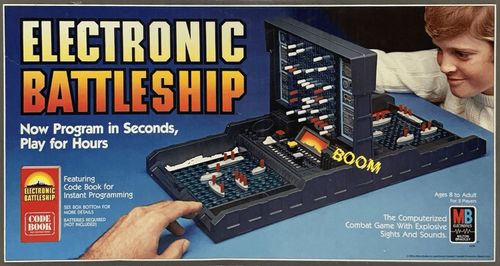
Electronic Battleship
Electronic Battleship Rulebook
Table of Contents
Table of Contents
The First Time You Play
Insert the Batteries
To insert the batteries, make sure the red ON/OFF switch is OFF. Then loosen the screw on the battery box, located on the underside of the center module, and remove the door. Insert three AA-size alkaline batteries, making sure to align the + and – symbols with the markings in the plastic. Then replace the door and tighten the screw. A Phillips/cross head screwdriver (not included) is needed to insert batteries.
Important battery information
- To avoid battery leakage: a. Always follow the instructions carefully. Use only batteries specified and be sure to insert them correctly by matching the + and – polarity markings. b. Do not mix old batteries and new batteries or standard (carbon-zinc) with alkaline batteries. c. Remove exhausted or dead batteries from the product. d. Remove batteries if the product is not to be played with for a long time. e. Do not short-circuit the supply terminals. f. Rechargeable batteries: Do not mix these with any other types of batteries. Always remove from the product before recharging. Recharge batteries under adult supervision. Do not recharge other types of batteries.
- Should this product cause, or be affected by, local electrical interference, move it away from other electrical equipment. Reset (switching off and back on again or removing and re-inserting batteries) if necessary.
Assemble the Game Unit
Apply the green Advanced Weapons label to the side of the center module with the red ON/OFF switch. Apply the red label to the other side.
Apply the large green BATTLESHIP label and two rubber feet to the back of the green battle grid. Apply the large red BATTLESHIP label and two rubber feet to the back of the red battle grid.
Press the battle grid panels into the sides of the module, with the green grid on the side with the red ON/OFF switch. Snap the target grid into the top, with the green side facing the red ON/OFF switch.
Apply the storage tray labels to both tray lids.
Place the Game Parts in the Tray
Carefully detach the 10 combat crafts from the plastic frames, and then discard or recycle the frame. Assemble each tank by inserting the peg on the underside of the gun turret into the body. Use an emery board or sandpaper to remove excess plastic from the ships.
Remove all pegs from the bags. Place half of the parts in each storage tray, so that each tray has:
- 34 red HIT pegs
- 64 white MISS pegs
- 10 blue SCAN pegs
Crafts and Setup
The Combat Crafts
Each player commands five crafts. The fleet includes a battleship, three planes, and a tank. (The terms "ships" and "crafts" are used interchangeably in Electronic Battleship.)
- Battleship – 5 hits to sink
- Spy Plane – 3 hits to sink
- Fighter – 3 hits to sink
- Attack Plane – 4 hits to sink
- Tank – 2 hits to sink
Setting Up Your Game
- Lay the battle grids flat. Then lift the target grid straight up until the rubber feet on the battle grids grip the play surface.
- Push down on the game unit to lock the battle grids in place. Make sure the game is stable before you start playing.
NATO Letter Codes
Battleship uses these NATO codes to call out letter coordinates:
- A = Alpha
- B = Bravo
- C = Charlie
- D = Delta
- E = Echo
- F = Foxtrot
- G = Golf
- H = Hotel
- I = India
The Command Panel
- Special Weapons (Advanced Game) – Press to use a craft's special weapon.
- Battle Scan (Advanced Game) – Press to search for enemies.
- Repeat – Press to repeat the last voice prompt.
- Fire – Press to launch an attack or confirm a menu selection.
- Letter/Number Buttons – To enter a coordinate, press the letter button first, and then the number button. To enter C7, for example, first press the button labeled C3, then press the button labeled G7.
- Cancel – Cancels an entry.
Quick Start
Quick Start: 2-Player Classic Battleship
Best for first-time players, or to get going fast!
- If necessary, follow the instructions on pages 3–4 to assemble and set up your game. Press the ON/OFF switch to turn the game on. Then:
- Press 2 to select two players.
- Press 1 to select the Classic game.
- Deploy your forces in one of two ways:
- Press 1 to select Custom Ship Layout. Place your crafts on your battle grid. Then enter the first and last coordinates of their locations.
- Press 2 to select Automatic Layout. This lets you choose from 30 preset layouts (pages 10–11). Choose your layout, place your crafts on the battle grid, and enter the code of the layout.
- Attack the enemy!
In the Classic game, you have one attack per turn. When the game starts, fire coordinates.
- If you miss, place a white peg on your target grid.
- If you hit, place a red peg on your target grid. Your opponent also places a red peg on the ship you hit.
- First player to destroy all enemy ships wins.
Game Modes
- Classic Game: 1 or 2 players. Basic game that lets you develop your battle skills. Play solo against the game, or against another player. On your turn, fire one shot to score a hit or a miss. To win, destroy the enemy fleet.
- Advanced Game: 2 players. More complex game that allows you to make attacks on each turn and access special weapons. To win, destroy the enemy fleet first.
Classic Battleship
Solo Classic Game
Play against the computer.
Starting the Game
- Sit on the green side of the game unit.
- Turn the game on. The game will say <The battle has begun! Input number of players. Press 1 for Solo game. Press 2 for 2-player game>. Press 1, then press FIRE to confirm. You'll be playing against the computer.
- Choose Custom or Automatic ship layout. Press 1 to choose Custom Ship Layout. Press 2 to choose Automatic Ship Layout. Then place your ships on your battle grid.
Ship Layout Options
- Custom: press 1 and FIRE to choose. Place each of your ships on your battle grid and input their coordinates so the game knows where they are.
- Automatic: press 2 and FIRE to choose. Place each of your ships in one of 30 preset layouts (see pages 10 and 11). Enter the code for that layout, and the game automatically inputs its coordinates.
Custom Ship Layout
If you selected Custom Ship Layout, the game will say <Player 1, deploy your fleet. When the ship reports, input the first and last coordinates of its location. Battleship reporting!>. Place your five ships on your battle grid, starting with your Battleship, and then input their coordinates:
- Place each ship by fitting its pegs into the holes. Do not place your ships diagonally.
- Don't place your ships so their target holes are off the battle grid or overlap other ships.
- Input only the first and last coordinates of the ships so the game will know where they are. Then press FIRE to confirm. For example, if you place your Battleship as shown in the guide (pages 6–7), the coordinates are B5, B6, B7, B8, and B9. To enter its location, just press B5 and B9. The game will automatically know the coordinates in between.
Automatic Ship Layout
If you've chosen this option, take a look at the 30 preset fleet layouts on pages 10 and 11. Choose a layout, and place your ships in the positions shown. When the game asks, enter the letter and number of the formation you used, then press FIRE to confirm.
Playing the Game
In the solo game, you are playing classic Battleship against the computer, which simulates the second player. After you make a layout selection, the computer simulates choosing a starting formation. Then, it simulates all attack choices on its turn, reporting hits or misses.
The game begins by saying <Awaiting orders Player 1>. Do the following:
- Choose a target: Choose a coordinate on the upper target grid. Put a white peg in that hole, and enter the letter/number coordinate.
- Fire! Press FIRE to launch a missile at your target. Then wait to see if it's a hit or a miss.
- Hit! If you hit an enemy ship, you'll hear an explosion and <Enemy hit at [target]!>. Replace your white peg with a red one to record the hit. Your opponent (in the solo game, it's the computer) then announces the hit, matching the same coordinate. (Your opponent does not tell you which ship was hit.)
- Miss! If you didn't hit an enemy ship, you'll hear <Miss at [target]>. Leave your white peg in the hole to mark it as a miss.
- You'll now hear <Awaiting orders Player 2>. Now it's your opponent's turn to choose a target and fire at it.
- Continue taking turns firing, and keep track of your hits and misses.
Canceling an Entry and Fixing Incorrect Coordinates
Canceling an entry. If you make a mistake, press the CANCEL button and re-enter the information after the last command is repeated.
Fixing incorrect coordinates. If you've entered wrong coordinates, the game will say
Destroying a Ship
When all coordinates of a ship have been hit, the ship is sunk. You'll hear <Enemy target neutralized!> and the name of the ship that was destroyed. Leave destroyed ships on the grid, with red pegs still in place.
Winning the Game
When one player sinks the fifth and last ship in his opponent's fleet, that player wins the game!
2-Player Classic Game
Play with a friend.
Starting the Game
- Choose sides. Player 1 sits on the green side of the game. Player 2 sits on the red side.
- Turn the game on. The game will say <The battle has begun! Input number of players. Press 1 for Solo game. Press 2 for 2-player game>. Press 2, then press FIRE to confirm.
- Choose a game mode: When the game says <Press 1 for Classic game. Press 2 for Advanced game>, press 1. You'll hear
. Press FIRE. - Choose your ship layout. (See Ship Layout Options in the Solo Classic Game section above.)
Playing the Game
The game begins by saying <Awaiting orders Player 1>. Do the following:
- Choose a target: Choose a coordinate on the upper target grid. Put a white peg in that hole, and enter the letter/number coordinate.
- Fire! Press FIRE to launch a missile at your target. Then wait to see if it's a hit or a miss.
- Hit! If you hit an enemy ship, you'll hear an explosion and <Enemy hit at [target]!>. Replace your white peg with a red one to record the hit. Your opponent then announces the hit, matching the same coordinate (your opponent does not tell you which ship was hit).
- Miss! If you didn't hit an enemy ship, you'll hear <Miss at [target]>. Leave your white peg in the hole to mark it as a miss.
- You'll now hear <Awaiting orders Player 2>. Now it's your opponent's turn to choose a target and fire at it.
- Continue taking turns firing, and keep track of your hits and misses.
Destroying a Ship
When all coordinates of a ship have been hit, the ship is sunk. You'll hear <Enemy target neutralized!> and the name of the ship that was destroyed. Leave destroyed ships on the grid, with red pegs still in place.
Winning the Game
When one player sinks the fifth and last ship in his opponent's fleet, that player wins the game!
Advanced Battleship
Advanced Game
The Advanced game plays just like the 2-player Classic game, but it gives you special weapons that add power to your battle. The weapons are described below.
Starting the Game
- Choose sides. Player 1 sits on the green side of the game. Player 2 sits on the red side.
- Turn the game on. The game will say <The battle has begun! Input number of players. Press 1 for Solo game. Press 2 for 2-player game>. Press 2, then press FIRE to confirm.
- Choose a game mode: When the game says <Press 1 for Classic game. Press 2 for Advanced game>, press 2 for the Advanced game. You'll hear
. Press FIRE. - Choose your ship layout. Both players choose their layout style and then place their ships on the grid. Press 1 to choose Custom Ship Layout. Press 2 to choose Automatic Ship Layout.
Ship Layout Options
- Custom: Press 1 and FIRE to choose. Place each of your ships on your battle grid and input their coordinates so the game knows where they are.
- Automatic: Press 2 and FIRE to choose. Place each of your ships in one of 30 preset layouts (see pages 10 and 11). Enter the code for that layout, and the game automatically inputs its coordinates.
Custom Ship Layout
If you selected Custom Ship Layout, the game will say <Player 1, deploy your fleet. When the ship reports, input the first and last coordinates of its location. Battleship reporting!>. If you're Player 1, place your five ships on your battle grid, starting with your Battleship, and then input their coordinates:
- Place each ship by fitting its pegs into the holes. Do not place your ships diagonally.
- Don't place your ships so their target holes are off the battle grid or overlap other ships.
- Input only the first and last coordinates of the ships so the game will know where it is. Then press FIRE to confirm. For example, if you place your Battleship as shown in the guide, the coordinates are B5, B6, B7, B8, and B9. To enter its location, just press B5 and B9. The game will automatically know the coordinates in between.
The Special Weapons Target Patterns are shown on a label on the game unit; refer to this label to quickly check the target patterns of the special weapons.
Automatic Ship Layout
If you've chosen this option, take a look at the 30 preset fleet layouts on pages 10 and 11. Choose a layout, and place your ships in the positions shown. When the game asks, enter the letter and number of the formation you used, then press FIRE to confirm.
Canceling an Entry and Fixing Incorrect Coordinates
Canceling an entry. If you make a mistake, press the CANCEL button and re-enter the information after the last command is repeated.
Fixing incorrect coordinates. If you've entered wrong coordinates, the game will say
Playing the Advanced Game
In this game, you make three attacks on each turn. One of them can be a special weapon. To activate a special weapon on your turn, press its corresponding button. If a ship is destroyed, you can't use its special weapon. These are your options:
- Battleship – Two salvos. Your Battleship has powerful missile salvos that can hit five spaces at once. You can use it twice per game.
- When you're prompted to input blast coordinates, choose a 5-space X-shaped area on your target grid. Place a white peg in each targeted hole. Enter the coordinates of the center hole.
- When you're prompted to fire, press FIRE. Then wait to see if the missile finds any targets. For each target found, you'll hear <Enemy hit at [target]!>. Replace the white peg with a red peg to record the hit. Leave any misses as white pegs.
- Attack Plane – Two air raids. Your attack plane can go on Air Raids, attacking in a straight line until it finds an enemy. You can use it twice per game.
- When you are prompted, press 1 to select a vertical attack, or press 2 for a horizontal attack. The air raid will move in the direction chosen from its starting location.
- Choose a coordinate on the top, bottom, left, or right of the grid. Place a white peg in that coordinate. Press FIRE to confirm.
- Wait to see if the attack finds a target.
- If a target is hit, you'll hear <Enemy hit at [target]!>. The attack will not travel any further. Place a red peg at the hit, and place a white peg in each hole before that to record the misses.
- If no targets are found, you'll hear a buzzer. Place a white peg in every hole in the line.
- Tank – Four blasts. Your tank can attack four spaces at once with powerful blasts. You can use it four times per game.
- Choose a coordinate for the blast to hit. The three coordinates to the right, bottom, and bottom right will also be hit. To hit a location with a tank blast, target the top left corner.
- When prompted to fire, press FIRE.
Destroying a Ship
When all coordinates of a ship have been hit, the ship is sunk. You'll hear <Enemy target neutralized!> and the name of the ship that was destroyed. Leave destroyed ships on the grid, with red pegs still in place.
Winning the Game
When one player sinks the fifth and last ship in their opponent's fleet, that player wins the game!
Automatic Fleet Layouts
The guide presents 30 automatic fleet layouts, labelled A-1 to A-9, B-1 to B-9, C-1 to C-9 and D-1 to D-3, on pages 10 and 11. Each layout is a 9 x 9 grid (rows A–I, columns 1–9) showing where each of the five crafts (Battleship, Attack Plane, Spy Plane, Fighter, Tank) sits. To use a layout, place your crafts on your battle grid in the positions shown, then enter the layout code when the game asks.
Transcription note: the layout positions are pictorial diagrams in the guide and are not reproduced here as text. Consult pages 10–11 of the official guide for the position of each craft in each layout.