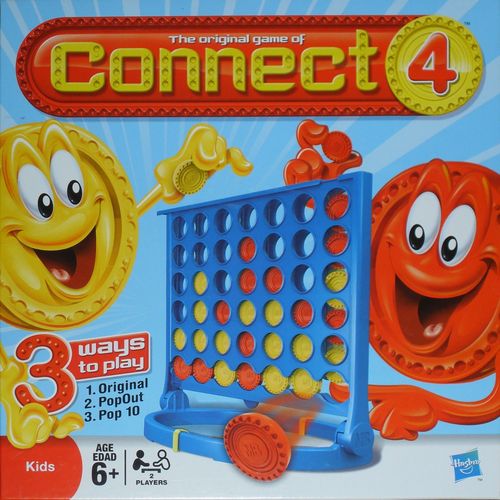
Connect 4 (Revised Edition)
Connect 4 (Revised Edition) Rulebook
Table of Contents
Table of Contents
Contents
- 1 grid with PopOut bar
- 1 top locking mechanism
- 1 game base (doubling as a carrying handle)
- 21 yellow counters
- 21 red counters
- 2 scoring slides
Assembly
- Slide the top locking mechanism into place on the grid as shown in Figure 1.
Note: You may need to lift up the end with the arrow to get the tab on the bottom over the edge of the grid. In the locked position, the end of this bar sits flush to the side of the grid.
Attach the scoring slides to the game base as shown in Figure 2.
Set Up
- When you're ready to play, place the game base on a flat surface. Hold the grid vertically and slide the tabs on the legs into the horizontal slots in the game base as shown in Figure 3.
- Make sure the locking mechanism is down to stop the counters falling out.
- Sit either side of the grid. One player takes all the yellow counters and the other takes all the red ones.
Original Connect 4
Be the first player to get 4 of your coloured counters in a row – horizontally, vertically or diagonally.
Before You Start
Make sure the locking mechanism and PopOut bar on the bottom of the grid are positioned so that they stop the counters falling or popping out of the grid.
How to Play
- Decide who's going first, then take turns after playing 1 counter each.
- Drop one of your counters down ANY of the slots in the top of the grid. See Figure 4.
- Take turns until one player gets 4 of their counters in a row (horizontally, vertically or diagonally). See Figures 5, 6 and 7. This player has won the game.
PopOut
Set Up
Slide the bar at the bottom to the PopOut position.
How to Play
Play PopOut just like the Original Connect 4. However, on your turn, you can choose either to drop a counter in OR pop one out of the bottom row.
Note: You can only drop in or pop out counters of your own colour.
Be careful. Your move could help you but it could also change things for your opponent.
POP 10
Set Up
It's great to play this game when the grid has been stored and all the counters are already in the grid. If the grid is empty, take turns dropping in counters one by one, completing a row at a time.
Make sure the PopOut bar is in the open position, so counters can be popped out.
How to Play
- Players take turns popping out a counter of their own colour from the bottom row of the grid.
- If the counter that was popped out was part of a Connect 4 (4-in-a-row), keep the counter next to you and continue your turn. Keep popping out counters of your own colour from the bottom row until you have to pop one out that is not part of a 4-in-a-row.
- If the counter you popped out was not part of a Connect 4, put it back into the top of the grid. The next player then takes their turn.
Note: You cannot put a counter back into the same column it was removed from unless there is no other option (this may happen early in the game).
- The first player to get 10 counters is the winner.
Storage
For easy storage, slide the locking mechanism on the bottom of the grid into place. Drop the counters into the grid then slide the locking mechanism on the top of the grid into place. This will keep the counters secure.
Remove the grid from the base by sliding it out of the horizontal slot. Both pieces may be stored in the box.
Alternatively, hold the grid upside down and slide the tabs on the legs into the vertical slots on the base and you'll have a convenient handle to carry your game anywhere. See Figure 8.
Scoring
Every time you win a game, move your scoring slider up 1 space. The first player to reach 5 is the Connect 4 champion!
To Start Another Game
First, clear the grid of counters by flipping the PopOut bar up. (The bar must be in the PopOut position for this to happen.) Collect your counters and put the PopOut bar back into the locked position.
You're ready to play again!